Is your Inspiron 14 Plus 7430 battery draining fast, shutting down randomly, or refusing to charge? This guide takes you from noticing issues → verifying → deciding to replace → installing a new battery, with an interactive (script-free) checklist, photos, specs, and purchase links for 54 Wh and 64 Wh batteries.
Battery Problem Diagnosis Checklist
Common Laptop Battery Issues (What to Look For & How to Verify)
| Symptom | What You Notice | Likely Cause | How to Verify |
|---|---|---|---|
| Rapid drain | Runtime drops from ~6–8h to ~1–3h | Capacity wear, aging cells | powercfg /batteryreport → compare Full Charge vs Design capacity |
| Sudden power-off | Shuts down at 20–40% | Voltage sag, cell imbalance | Repeat on light vs heavy load; check BIOS/ePSA health |
| Not charging | “Plugged in, not charging” | Battery wear, adapter/cable, firmware limits | Try known-good adapter; BIOS battery health; Dell Power Manager |
| Swelling | Touchpad/case lift, creaking | Gas generation in aged cells | Visual inspection; if suspected, stop using and replace |
| Overheating | Warm/hot during light tasks | High internal resistance | Compare temps on AC vs battery; clear vents |
| Capacity ≤ 60% | Noticeably shorter life | End-of-life wear | Battery Report or third-party monitors |
| High cycle count | Frequent charge/discharge use | Cells near end of life | Check cycle count in report or BIOS |
Quick Verification Steps
- Windows Battery Report: Run
powercfg /batteryreport; if Full Charge Capacity ≤ ~60% of Design Capacity, replacement is justified. - BIOS/ePSA: Enter BIOS (F2) or diagnostics (F12) to check battery health.
- Known-good AC adapter: Swap to exclude adapter or cable issues.
Prepare: Tools, Safety & Data
Safety: If swelling is suspected, shut down, unplug, and avoid pressing the palm rest or touchpad. Replace promptly.
- Back up important files.
- Shut down and unplug the AC adapter.
- Remove any microSD card from the slot before opening.
- Service Mode: Enable if available; otherwise after shutdown hold power for 15–20 seconds to discharge.
- Work on a clean, static-safe surface (ESD strap recommended).
| Tool | Purpose |
|---|---|
| Phillips #0/#00 screwdriver | Base cover (M2x4) & battery (M2x3) screws |
| Plastic scribe / spudger | Safely pry the base cover |
| Tweezers (optional) | Handle tape and small connectors |
Step 1: Remove the Base Cover
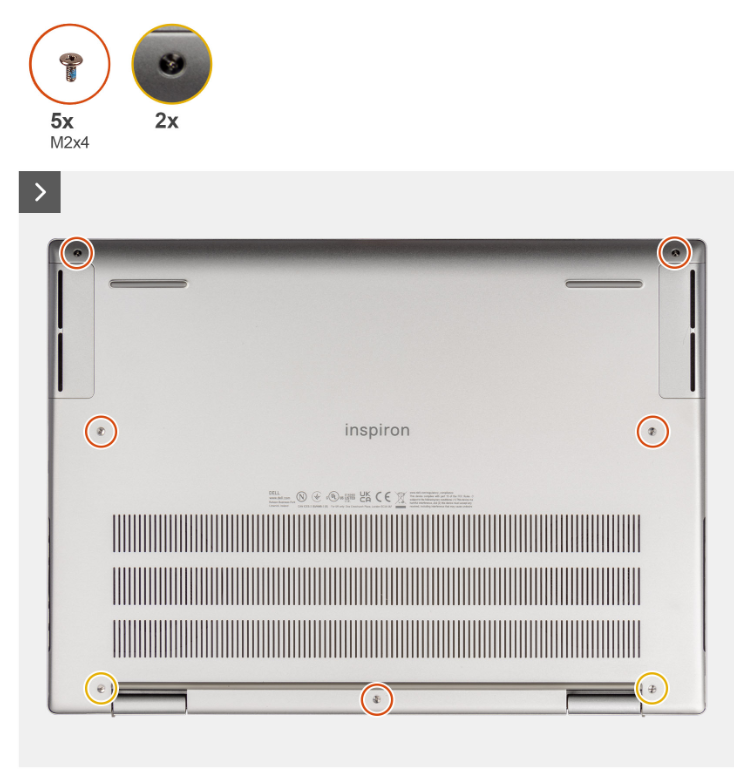
- Remove the five M2x4 screws securing the base cover.
- Loosen the two captive screws (they remain attached to the cover).
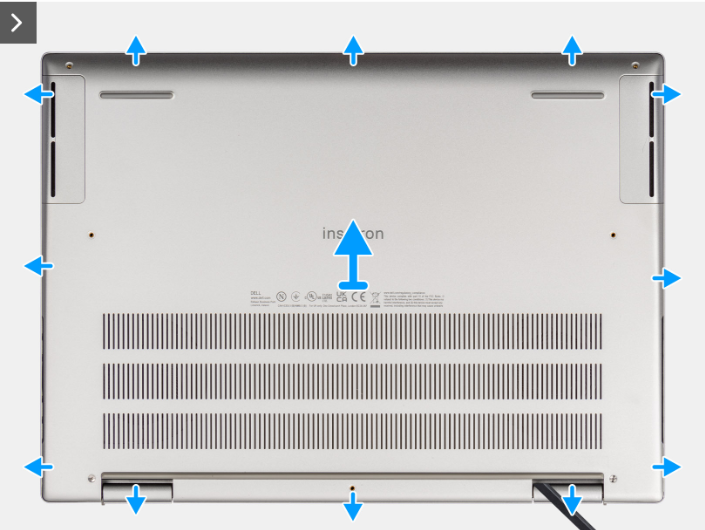
- Using a plastic scribe, pry gently from the hinge area, then around all sides to release clips.
- Lift the base cover off the palm-rest and keyboard assembly.
Step 2: Disconnect the Battery Cable
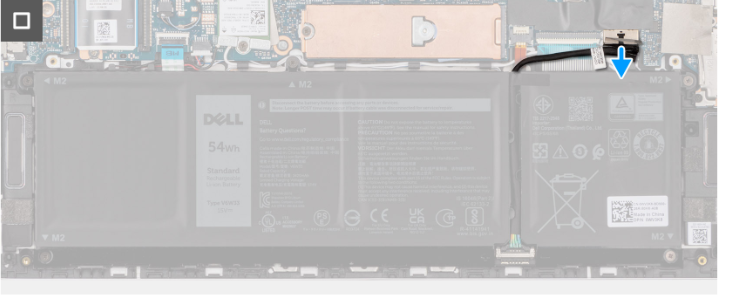
- Peel the tape that secures the battery cable to the system board.
- Disconnect the battery cable from its connector on the system board.
Step 3: Remove & Replace the Battery
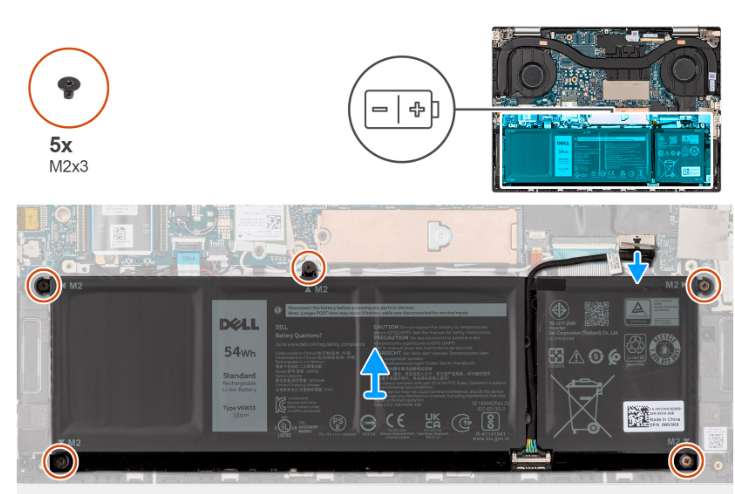
- Remove the five M2x3 screws securing the battery.
- Lift the battery straight up and out.
- Install the new battery: seat it flat, align screw holes, and route the cable as originally.
- Reinstall the five M2x3 screws (snug, do not overtighten).
- Reconnect the battery cable and re-secure the tape.
Which battery should I buy? This model supports a 4-cell 54 Wh or 64 Wh pack. See specs & links.
Reassembly & First Boot
- Place the base cover and press along the edges to engage clips.
- Tighten the two captive screws, then install the five M2x4 screws.
- Reconnect AC and boot to BIOS to confirm battery detection/health.
- Boot into Windows; confirm charging status.
After Replacement: Calibrate & Optimize
- Charge to 100%, then keep charging for another 30–60 minutes.
- Use on battery down to ~10–15%, then recharge to 100% without interruption.
- Optionally generate a new Windows Battery Report to baseline the new pack.
Dell Inspiron 14 Plus 7430 Battery Specifications & Options
| Description | 54 Wh (4-cell) | 64 Wh (4-cell) |
|---|---|---|
| Type | 4-cell 54 Wh polymer | 4-cell 64 Wh polymer |
| Voltage | 15 VDC | 15.20 VDC |
| Weight (max) | 0.23 kg (0.51 lb) | 0.26 kg (0.57 lb) |
| Height | 5.75 mm (0.23 in.) | 5.75 mm (0.23 in.) |
| Width | 271.90 mm (10.70 in.) | 271.90 mm (10.70 in.) |
| Depth | 82 mm (3.23 in.) | 82 mm (3.23 in.) |
| Operating temp | Charge: 0–45°C; Discharge: 0–70°C | Charge: 0–45°C; Discharge: 0–70°C |
| Storage temp | –20–60°C (–4–140°F) | –20–60°C (–4–140°F) |
| Charge time (off) | 0–15°C: ~4 h; 16–50°C: ~3 h | 0–15°C: ~4 h; 16–50°C: ~3 h |
| Battery operating time | Varies with usage; power-intensive workloads reduce runtime. | |
Buy Compatible Batteries

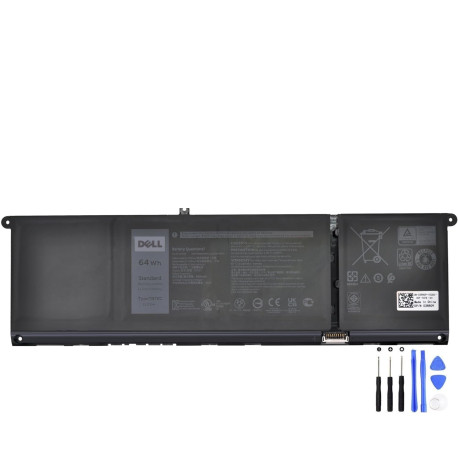
Compatible systems: Dell Inspiron 14 Plus 7430 (P171G / P171G004).
FAQ
Will the 64 Wh battery fit the same as the 54 Wh?
Yes. Both are 4-cell packs with the same physical envelope for this chassis; the 64 Wh is slightly heavier and provides longer runtime.
Do I need to update BIOS or drivers?
Not strictly required for the physical swap, but keeping BIOS/firmware up to date can improve battery reporting accuracy.
It still shuts down early after replacement—what now?
Run a calibration cycle (see above), confirm BIOS/Windows detect the new pack, and review power plans.