Short answer: If your Inspiron 13 5330 shows fast drain, sudden shutdowns at 20–40%, battery swelling, or fails Dell diagnostics, it’s time to replace the battery. This guide helps you confirm the problem and install the correct 54Wh (V6W33) or 64Wh (TN70C) battery safely.
1) Common Signs Your Inspiron 13 5330 Battery Needs Replacement
From a customer’s perspective, these are the most telling indicators. If two or more match your experience, plan to replace the battery.
- Rapid battery drain: Runtime has fallen by 30–70% compared to when new, even with light tasks.
- Random shutdowns at 20–40%: System powers off abruptly with charge still showing. This points to cell imbalance or high internal resistance.
- Charge stuck or drops suddenly: Battery stalls at a percentage for a long time, then free-falls, or jumps back after reboot.
- Battery health warnings: BIOS or Dell software shows “Your battery is reaching the end of its usable life.”
- Swelling or case separation: Bottom cover bulges, trackpad clicks poorly, or there’s a gap along the palm rest. Stop using immediately and replace.
- Won’t charge past 60–80%: Not caused by custom charge limits; usually aging chemistry.
- High cycle count + poor health: Many charge cycles with degraded full-charge capacity.
- Hot when charging: Unusually warm palm rest or underside (beyond normal), throttling, or fan constantly running.
- Adapter reliance: Laptop shuts down the moment the adapter is unplugged.
- Battery not detected: System reports “No battery present” or “Battery communication error.”
2) Verify the Problem Before You Buy
- Rule out software limits: In Dell Power Manager (or MyDell), ensure any “Battery Extender” or custom charge limit is disabled while testing.
- BIOS Battery Health: Reboot, press F2 to enter BIOS > Battery Information. Check health (Good/Fair/Poor) and AC adapter detection.
- Battery diagnostics: From power-on, press F12 > Diagnostics to run ePSA tests. Failures confirm a hardware battery issue.
- Adapter and port check: Confirm a genuine or known-good adapter is recognized in BIOS. An unrecognized adapter can prevent proper charging.
- Visual inspection: Power off, check for base bulge or trackpad uplift—both suggest swelling.
If these checks point to battery degradation, proceed to selection and replacement.
3) Choose the Right Replacement Battery (54Wh vs 64Wh)
Compatible Options for Inspiron 13 5330 (P156G/P156G002)
- 54Wh (4-cell, polymer) — Part/Vendor: Dell V6W33 54Wh
- 64Wh (4-cell, polymer) — Part/Vendor: Dell TN70C 64Wh
| Consideration | 54Wh (V6W33) | 64Wh (TN70C) |
|---|---|---|
| Typical use | Everyday work, portability priority | Longer runtime for travel or heavy multitasking |
| Nominal voltage | 15 VDC | 15.20 VDC |
| Max weight | 0.235 kg (0.52 lb) | 0.26 kg (0.57 lb) |
4) Battery Specifications for Inspiron 13 5330
| Description | Option One: 4-cell, polymer, 54Wh (V6W33) | Option Two: 4-cell, polymer, 64Wh (TN70C) |
|---|---|---|
| Voltage (nominal) | 15 VDC | 15.20 VDC |
| Weight (maximum) | 0.235 kg (0.52 lb) | 0.26 kg (0.57 lb) |
| Dimensions (H × W × D) | 271.90 × 82 × 5.75 mm (10.70 × 3.23 × 0.23 in.) | 271.90 × 82 × 5.75 mm (10.70 × 3.23 × 0.23 in.) |
| Operating temperature | 0°C to 50°C (32°F to 122°F) | 0°C to 50°C (32°F to 122°F) |
| Storage temperature | -20°C to 60°C (-4°F to 140°F) | -20°C to 60°C (-4°F to 140°F) |
| Charging time (approx.) | 0–15°C: ~4 h; 16–50°C: ~3 h | 0–15°C: ~4 h; 16–50°C: ~3 h |
| Operating time | Varies by workload and settings | Varies by workload and settings |
5) Prep: Tools, Safety, and Data Protection
- Tools: Phillips #0 screwdriver, plastic scribe/spudger, tweezers, small container for screws.
- Power down: Shut down Windows completely and unplug the AC adapter.
- Discharge: Hold the power button for 10–15 seconds after shutdown.
- ESD safety: Work on a non-conductive surface; use an anti-static strap if available.
- Back up: Save important files before you begin.
- Avoid flexing the pack: Do not puncture, bend, or compress the battery.
6) Step-by-Step Battery Replacement
6.1 Remove the Base Cover
Prerequisite: System is powered off and unplugged.
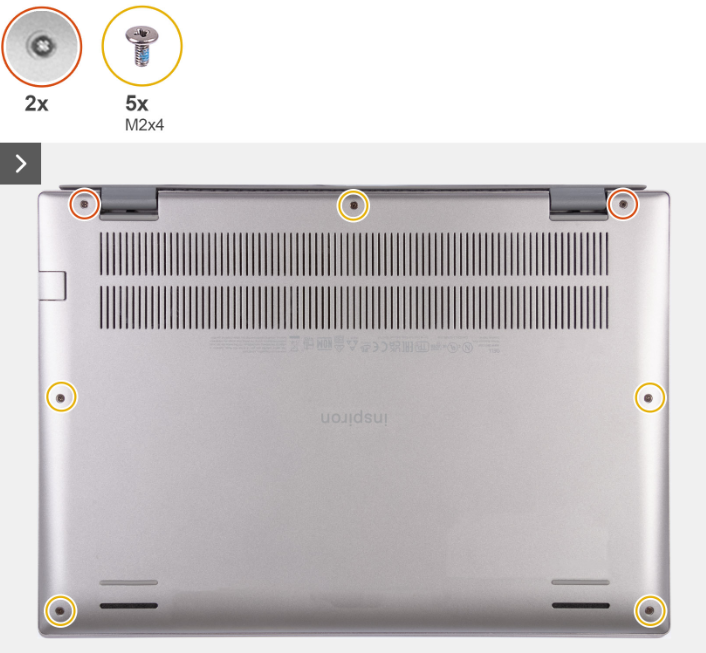

- Remove the five screws (M2×4) that secure the base cover to the palm-rest and keyboard assembly.
- Loosen the two captive screws that secure the base cover (they remain attached).
- Using a plastic scribe, pry from the hinge area, then work around the edges to release all clips.
- Lift the base cover away and set it aside.
6.2 Remove the Battery
Prerequisites: Base cover removed.

- Peel off the Mylar covering the system board as shown.
- Peel off the tape covering the battery-cable connector.
- Gently disconnect the battery cable from the system board.
- Remove the five screws (M2×3) that secure the battery.
- Lift the battery straight up and out. Avoid bending or twisting.
6.3 Remove the Battery Cable (If Replacing the Cable)
Prerequisites: Base cover and battery removed.
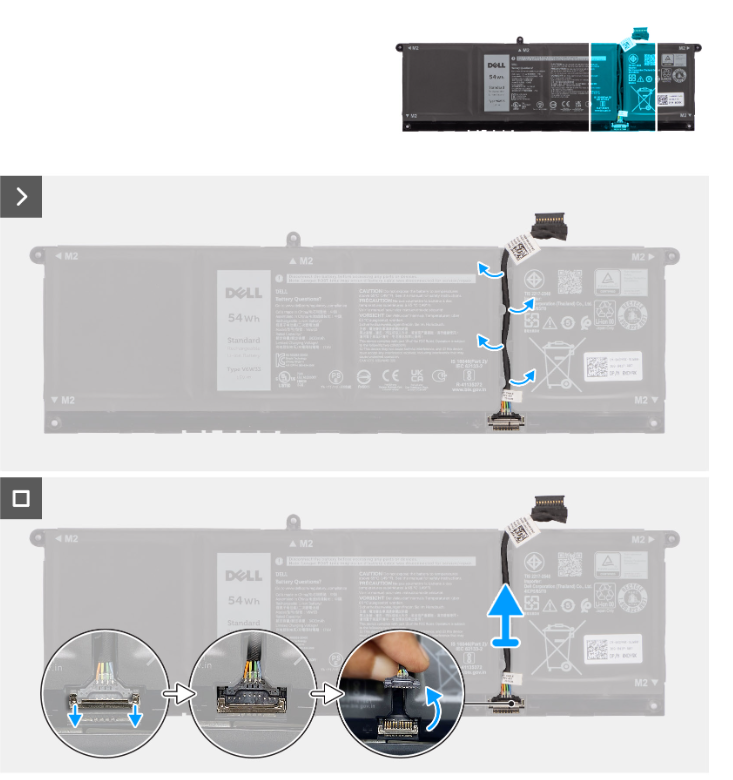
- Remove the cable from the routing guides on the battery.
- Slide down the clamp that secures the cable to the battery.
- Disconnect and remove the battery cable from the battery.
6.4 Install the New Battery & Reassemble
- Place the new V6W33 54Wh or TN70C 64Wh battery into position.
- Route the battery cable correctly and reconnect it to the system board.
- Install and tighten the five M2×3 battery screws until snug (do not overtighten).
- Re-apply the protective Mylar and tape over the connector as originally found.
- Reinstall the base cover, press around the edges to engage clips, then tighten the five M2×4 screws and the two captive screws.
- Reconnect the AC adapter and power on.
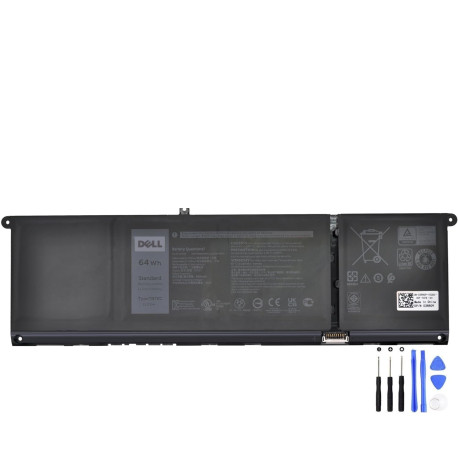
Recommended Replacement Batteries

7) Post-Replacement: Calibration & Battery Care
- Initial charge: With the laptop on, charge to 100% and keep it plugged in for 30–60 minutes.
- Calibrate: Use the laptop on battery to ~10–15%, then recharge to 100%. Repeat 1–2 times to help the gauge learn the new pack.
- Best practices: Avoid sustained heat, heavy discharge below 10%, and storage at 100%. For storage, leave ~50% charge.
- Software: In Dell Power Manager/MyDell, set a balanced charge strategy if you mostly use AC power.
8) Troubleshooting After Replacement
- Battery not detected: Reseat the cable, check connector alignment, and ensure the cable isn’t pinched.
- Won’t charge: Confirm AC adapter is recognized in BIOS. Update BIOS and chipset drivers if needed.
- Fast drain continues: Check background tasks, Windows power plan, and screen brightness; re-run ePSA diagnostics.
- System very hot: Inspect for blocked vents or dust; ensure the battery is flat and not pressing against the cover.
- Bulge or chemical smell: Power down immediately and remove the battery safely; replace with a new pack.
9) Quick FAQ
How long does a new battery last?
Typical mixed use is several hours depending on brightness and workload. The 64Wh option offers longer runtime than 54Wh under the same conditions.
Can I upgrade from 54Wh to 64Wh?
Yes. Both packs are physically compatible with the Inspiron 13 5330. Choose the capacity that fits your runtime needs.
Do I need to replace the battery cable?
Only if the original cable is damaged or not making reliable contact. If needed, follow the cable removal section above.