From first signs of battery trouble to confident DIY replacement — complete with a live checklist, jump links, and step-by-step photos.
Customer-Focused Deep Dive: Do You Really Need a New Battery?
Before buying, match what you feel day-to-day with the technical reality. The table below explores common symptoms, what they usually mean, and quick verification tips you can try in minutes.
| What you notice | What it often means | Quick at-home verification | Urgency to replace |
|---|---|---|---|
| Battery drops fast (e.g., 80% → 30% in minutes) | High cycle count / cell wear; possible cell imbalance | Check Windows battery report (see below); compare “Full Charge Capacity” vs “Design Capacity” | High if capacity < 70% of design |
| Random shutdowns at 20–40% | Voltage sag under load; weak cells | Run on battery while streaming video; note if it powers off abruptly | High (risk of data loss) |
| Won’t hold charge; dies soon after unplugging | Severely degraded capacity | Battery report + observe runtime on balanced power mode | Immediate |
| Battery percentage stuck or jumps around | Calibration drift; wear; BMS misread | Full discharge to 5–10% then uninterrupted full charge; recheck accuracy | Medium (replace if drift returns) |
| Charging only to 60–80% | Battery health setting/charge limit; thermal limit; wear | Disable charge limits in BIOS/utility; test again | Low → Medium |
| Ac adapter works but laptop powers off when moved | Battery/connector intermittent; cable strain | Gently wiggle near battery cable (on a safe surface); observe | Medium → High |
| Battery swollen or palm rest lifting | Gas buildup in aged lithium cells (danger) | Visual check; do not press on the case | Stop using & replace now |
| “Battery not detected / not charging” errors | Battery end-of-life, cable loose, or firmware | Reseat battery cable; update BIOS; test with AC off | Medium → High |
| Very hot while charging or gaming | Normal load heat vs. aging cells/poor airflow | Compare temps on AC vs battery; inspect vents | Medium (investigate) |
Battery Problem Diagnosis Checklist
Tick what you’ve experienced. If two or more are checked, you’ll see a red alert recommending replacement.
Keep monitoring
Verify It’s the Battery (Fast Tests Before You Buy)
- Generate a Windows Battery Report: Open Command Prompt and run powercfg /batteryreport. Open the HTML report and compare Design Capacity vs Full Charge Capacity. If FCC is ≤70% of design, replacement is recommended.
- AC Adapter vs Battery Only: Unplug the adapter and use the laptop lightly. If it drops quickly or shuts off, the pack likely can’t sustain load.
- BIOS/UEFI Health: Check BIOS battery health status and ensure no charge limit is set while testing.
Choose the Right Replacement for Dell Inspiron 16 5635 (P125F / P125F003)
Two popular, compatible options are below. Pick the capacity you prefer; higher Wh generally means longer unplugged runtime.

Dell V6W33 — 54Wh
Balanced capacity and value. Ideal for everyday productivity and portability.
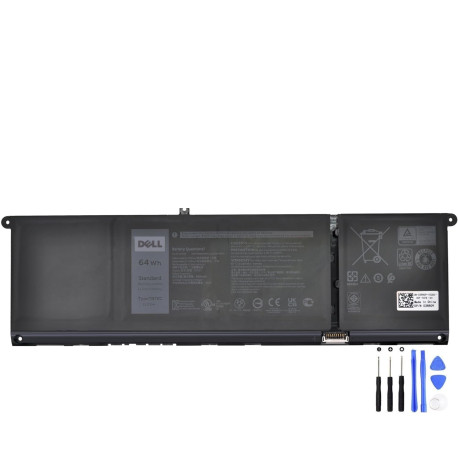
Dell TN70C — 64Wh
Higher capacity for longer runtime. Great if you work unplugged often.
Tools & Preparation
- Phillips #0 screwdriver (for M2×4 screws)
- Plastic scribe / opening pick (non-metal)
- Anti-static precautions (ESD strap or frequent grounding)
- Small parts tray for screws and tape
Important Safety Notes
Power down and unplug the AC adapter. Hold the power button 10–15 seconds to discharge residual power. Avoid metal tools near the battery connector. If the battery is swollen, do not press the cover closed—replace immediately.
Before removing the base cover, ensure there is no SD card in the SD slot.
Step 1 — Remove the Base Cover (with Photos)
1) Remove screws
Remove seven (7) M2×4 screws that secure the base cover to the palm-rest and keyboard assembly. Then loosen the two captive screws (they stay attached to the cover).

2) Pry and lift the cover
Using a plastic scribe, start at the top-left edge. Work along the sides to release the clips. Lift and slide the cover off the palm-rest assembly.

3) Expose and disconnect the battery cable
Peel back the tape that secures the battery cable to the battery and disconnect the battery cable from the system board.

Step 2 — Remove the Battery (with Photo)
4) Free the cable and remove screws
Ensure the battery cable is disconnected and disengage it from the tabs on the system board. Remove the five (5) M2×4 screws securing the battery.
5) Lift out the battery
Lift the battery straight up and out of the palm-rest and keyboard assembly. Handle it by the edges only.

Re-installation, First Boot & Calibration
- Install the new battery: Place it flat, align holes, and secure with the five (5) M2×4 screws.
- Reconnect the battery cable and re-apply the tape to secure the cable.
- Re-fit the base cover: Slide in place, press around the edges to engage clips, tighten the two captive screws, then install the seven (7) screws.
- First boot on AC power: Connect the adapter and power on. Confirm the battery is detected and charging in Windows and BIOS.
- Calibrate: Charge to 100% without interruption, let it rest 30 minutes, then use on battery to ~10–15%, and recharge to 100%.
FAQ
How long does replacement take for a first-timer?
About 20–40 minutes if you follow the steps and keep screws organized.
Will a higher-Wh battery affect performance?
Performance is unchanged; you simply gain longer runtime between charges.
After replacement, Windows still shows odd percentages — normal?
Yes, briefly. Complete one full calibration cycle. If drift persists, recheck connections and BIOS.
Why this guide?
This post is crafted for customers and search engines alike: clear symptoms, verifiable tests, compatible parts, and photo-driven steps specific to Dell Inspiron 16 5635 (P125F / P125F003). Bookmark it for future tune-ups.