If your Dell XPS 16 9640 is acting up on battery, this guide walks you like a customer would: notice a problem → verify it → decide to replace → install the new RWFFJ 99.5Wh battery. Follow the steps, check the visuals, and get back to all-day power.
Quick Summary – Jump to a Section
- Common & Deep-Dive Symptoms (Do You Really Need a New Battery?)
- Verify Battery Health (Windows & Dell tools)
- Buy or Not? Decision Checklist
- Step 1 – Remove the Base Cover (with images)
- Step 2 – Remove & Replace the Battery (with image)
- Recommended Battery & Secure Purchase Link
- Post-Install Tips (Calibration & BIOS)
- FAQ & Safety Notes
Common Problems That Mean Your Laptop Battery Needs Replacement
| Symptom | What You’ll Notice | Why It Happens / What It Means | Urgency |
|---|---|---|---|
| Rapid battery drain | Percentage falls quickly during light work | Capacity loss >30% from cell aging; internal resistance up | High |
| “Plugged in, not charging” | AC connected but charge stuck at a number | Charge cycle wear, protection circuit limits, or cell imbalance | High |
| Unexpected shutdowns | Laptop powers off at 20–40% remaining | Voltage sag under load triggers safety cutoff | High |
| Overheating while charging | Warm palm rest or fan ramping during charge | Degraded cells create excess heat; potential safety risk | High |
| Swelling or lift on the base | Touchpad feels stiff, base panel bows | Gas buildup from failing cells; stop using immediately | Critical |
| Charge takes too long | Hours to move from 80% → 100% | High internal resistance; nearing end of life | Medium |
| Battery report shows big gap | Full Charge < 70% of Design Capacity | Wear level clearly beyond normal | High |
How to Verify Battery Health Before You Buy
- Windows Battery Report: Press
Win+X→ “Windows Terminal (Admin)” → runpowercfg /batteryreport. Open the generated HTML and compare Design Capacity vs Full Charge Capacity. - Dell Power Manager / MyDell: Check Battery Health (e.g., Good / Fair / Poor) and Wear %.
- Behavior checks: Note any shutdowns at mid-percentage, charge stalls, or heat spikes.
Rule of thumb: If Full Charge Capacity is ≤70% of Design Capacity, or you see shutdowns/overheating, plan to replace.
Buy or Not? Quick Decision Checklist
- Yes, replace now if: unexpected shutdowns, swelling, “not charging,” or wear ≥30%.
- Consider soon if: battery life is half of new and you’re traveling often.
- Defer if: wear <15% and runtime still meets your daily needs.
Step 1 – Removing the Base Cover (Dell XPS 16 9640 / P129F / P129F001)
CAUTION: If you cannot enter Service Mode, disconnect the battery cable as soon as the cover is off. Remove any microSD card before starting.
- Shut down the laptop. Ensure Service Mode is enabled if supported.
- Remove the eight screws (M2×4, T5) securing the base cover.
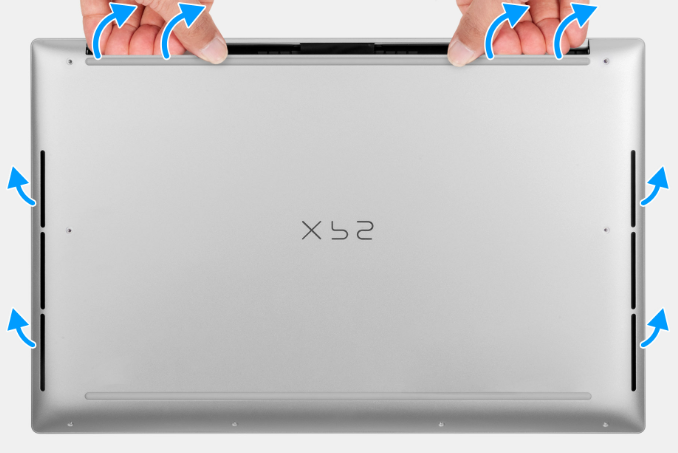
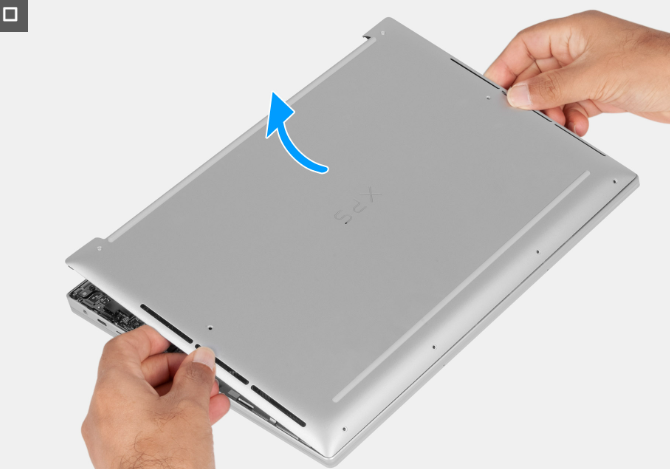
- Place your thumbs/fingers into the recess at the top edge of the cover and gently pry to release clips.
- Lift the base cover away from the palm rest & keyboard assembly.
- Open the display lid and press & hold Power for 5 seconds to discharge residual (flea) power.

Step 2 – Removing & Replacing the Battery
CAUTION: Removing the battery resets BIOS setup to default. Photograph or note custom BIOS settings first.
- Disconnect the battery cable from the BATT connector on the system board (if not already disconnected).
- Remove the six screws (M2×4.5) securing the battery to the chassis.
- Lift the old battery straight up and out of the palm-rest assembly.
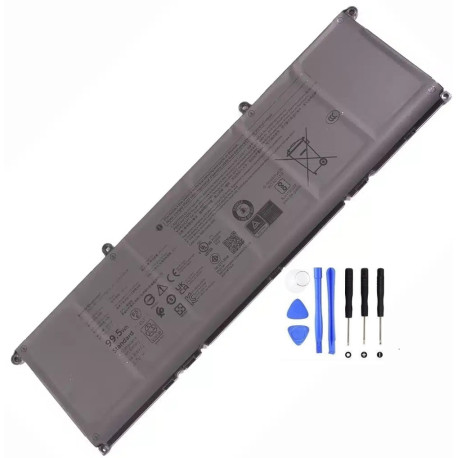
- Place the new battery into position: Dell RWFFJ 99.5Wh Battery.
- Reinstall the six screws and reconnect the battery cable firmly.
- Re-fit the base cover (reverse of Step 1) and reinstall the eight T5 screws.

Recommended Battery & Secure Purchase Link
The correct replacement for Dell XPS 16 9640 (P129F / P129F001) is the RWFFJ 99.5Wh pack. Buy from a trusted source to avoid counterfeits and ensure proper safety circuitry:
Post-Install Tips (Calibration & First Boot)
- Connect AC, boot to BIOS to confirm the battery is detected.
- In Windows, update Dell BIOS/firmware if prompted.
- Calibrate once: charge to 100%, keep charging for 30–60 minutes, then use to ~10–15% and recharge to 100%.
- Optional: In Dell Power Manager, choose a charging mode that suits your usage (e.g., Standard or Primarily AC Use).
FAQ & Safety Notes
- Tools needed: T5 Torx, small Phillips, ESD strap (recommended), plastic pry tool.
- If the battery is swollen: Do not press on the palm rest or try to re-flatten the pack. Seek professional disposal.
- No power after install? Reseat the battery connector; press/hold Power 20–30 seconds; verify screws aren’t shorting contacts.
- Runtime still short? Check background apps, Windows Battery Report, and charging policy in Dell Power Manager.
With the right diagnosis and the genuine RWFFJ 99.5Wh battery, your XPS 16 9640 can feel brand new again—quiet, cool, and ready for a full day away from the outlet.