Alienware m15 R4 (P87F / P87F003) — Battery Replacement Guide & Buyer’s Checklist
Your gaming laptop should run hard on battery, not hard on anxiety. If your Alienware m15 R4 dies fast, won’t charge, or swells the chassis, use this field-tested, customer-first guide to confirm the issue and replace the pack safely with the correct 86 WHr battery.
Model: Alienware m15 R4
Battery P/N: 69KF2
Capacity: 86 WHr (6-cell Li-ion)
1) Common Signs Your Laptop Battery Needs Replacement
These are the patterns we see most often. The more that apply, the more likely a swap is due.
- Battery drains unusually fast under light use, or percentage drops in big chunks.
- Windows shows “Consider replacing your battery” or health status “Poor”/“Very Poor.”
- Laptop shuts off abruptly at 10–30% remaining without a low-battery warning.
- Battery will not charge past a certain percentage (e.g., stuck at 60–80%).
- Requires the AC adapter to power on; unplug = instant power-off.
- Charging LED blinks unusual patterns while the icon in Windows alternates between “plugged in, not charging.”
- Battery is physically swollen: touchpad click feels stiff, bottom cover bows, or a gap appears at the seams.
- High cycle count with noticeably reduced runtime compared to when new.
- Battery report shows severe wear (design capacity ≫ full charge capacity).
- Battery overheats during charging or while idle; chassis feels hot near battery area.
| Symptom | What it often means |
|---|---|
| Sudden shutdown at 20–30% | One or more weak cells; voltage sag under load. |
| Stuck at 60–80% | Battery wear or charge threshold settings; try reset, then consider replacement. |
| Won’t power on without AC | Pack not recognized or severely degraded. |
| Swollen bottom cover | Cell gas buildup—stop using and replace immediately. |
| Very short runtime | High wear level; capacity far below 86 WHr design. |
2) Battery Problem Diagnosis Checklist
Tick what you’re experiencing. If 0–1 items are checked, try software fixes first. If 2 or more are checked, Replace the battery recommended.
Checked: 0 item(s). Status: Try software checks first.
3) Verify Before You Buy (Quick, No-Cost Tests)
- Run a Windows Battery Report: Press Win+X → Windows Terminal (Admin), then run powercfg /batteryreport. Open the generated HTML and compare Full charge capacity vs Design capacity (86 WHr).
- Check BIOS Battery Health: Reboot → tap F2 for BIOS. Look for Battery Health status. If poor or not detected, hardware is likely at fault.
- Inspect for Swelling: Place laptop on a flat surface; check bottom cover seams and touchpad click feel. If swelling is suspected, stop using and replace.
- Rule Out Software Limits: In Dell Power Manager (or BIOS), disable any battery charge limits, then test charging again.
4) Compatibility & Battery Specifications
Confirmed fit for Alienware m15 R4 (platform P87F / P87F003) using Dell part number 69KF2.
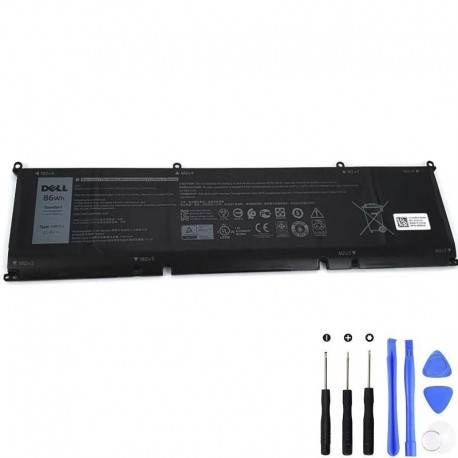
| Description | Values |
|---|---|
| Battery type | 86 WHr, 6-cell “smart” lithium-ion |
| Voltage | 11.40 VDC |
| Weight (max) | 0.34 kg (0.75 lb) |
| Dimensions | H 77.70 mm × W 295.20 mm × D 7.56 mm |
| Operating temp | 0°C to 60°C (32°F to 140°F) |
| Storage temp | -20°C to 60°C (-4°F to 140°F) |
| Charging time (approx.) | ~3 hours when the computer is off |
| Coin-cell battery | Not supported |
5) Tools, Parts & Safety
What you need
- Dell 69KF2 86 WHr replacement battery
- T6 Torx and Phillips #0/#00 screwdrivers
- Plastic pry tool (spudger/scribe)
- ESD strap or frequent grounding touch
- Tweezers and low-tack tape for screw management
Safety & prep
- Shut down Windows, unplug AC, and remove peripherals.
- Move any micro-SD card from the slot before opening.
- Work on a clean, non-conductive surface.
- Never puncture or bend the battery. If swollen, handle gently and recycle properly.
Pro tip: screw management & torque
Keep a simple screw map. Reinstall until snug—do not overtighten into aluminum or standoffs.
Screw Map (for quick reassembly)
| Location | Type / Size | Qty | Notes |
|---|---|---|---|
| Base cover (outer) | M2.5 × 5 | 2 | Fully removable |
| Base cover (captive) | Captive screws | 6 | Loosen only |
| Battery (front row) | M2 × 4 | 4 | Remove |
| Battery (rear row) | M2 × 3 | 4 | Remove |
6) Step-by-Step: Remove the Base Cover
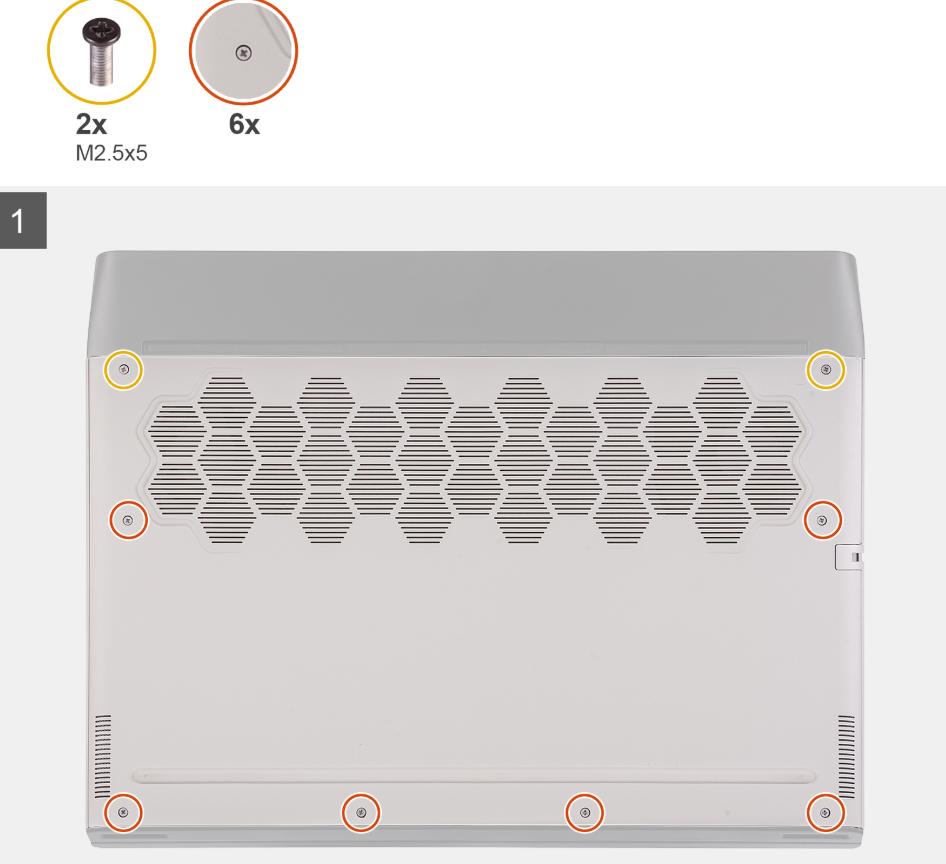
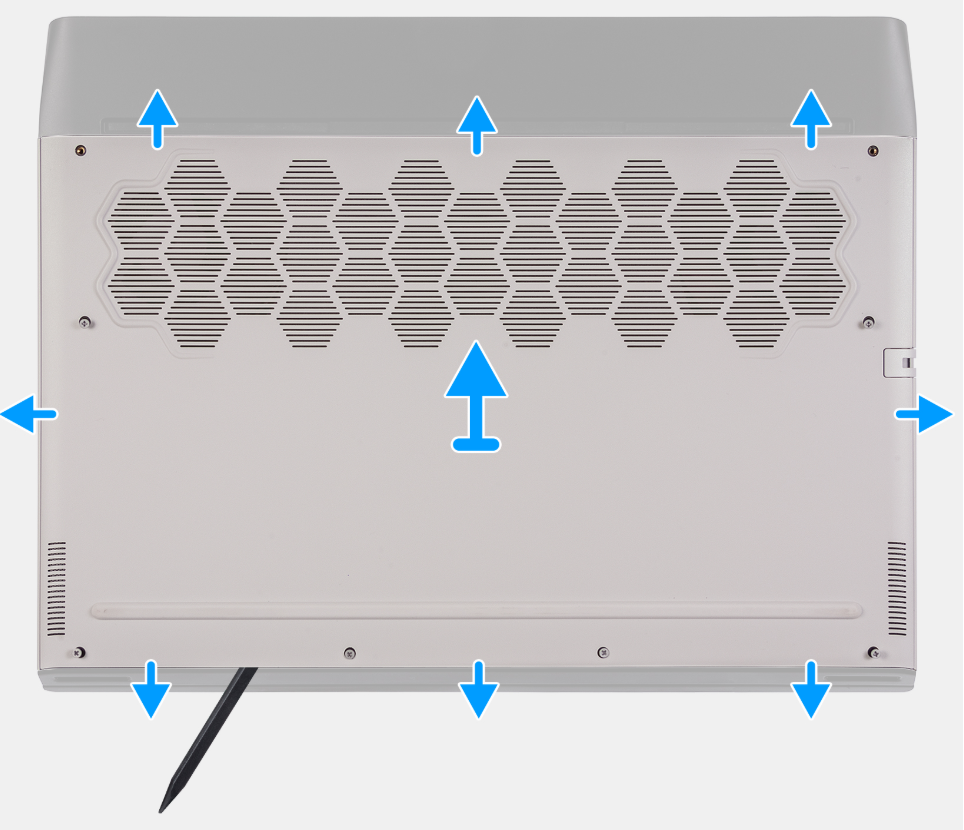
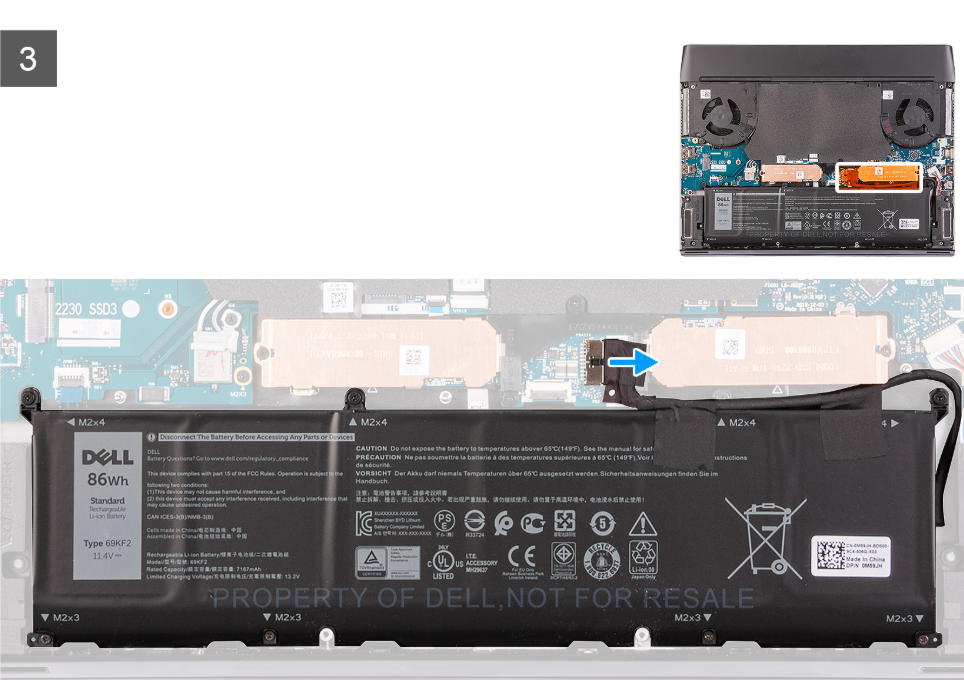
- Remove the two M2.5×5 screws securing the base cover to the palm-rest assembly.
- Loosen the six captive screws.
- With a plastic scribe, pry from the bottom-left corner and work along the sides to release clips.
- Lift and slide the base cover off.
- Disconnect the battery cable from the system board.
- Gently peel the tape securing the battery cable to the battery.
- Press and hold the power button for 5 seconds to drain flea power.
7) Step-by-Step: Remove & Replace the Battery
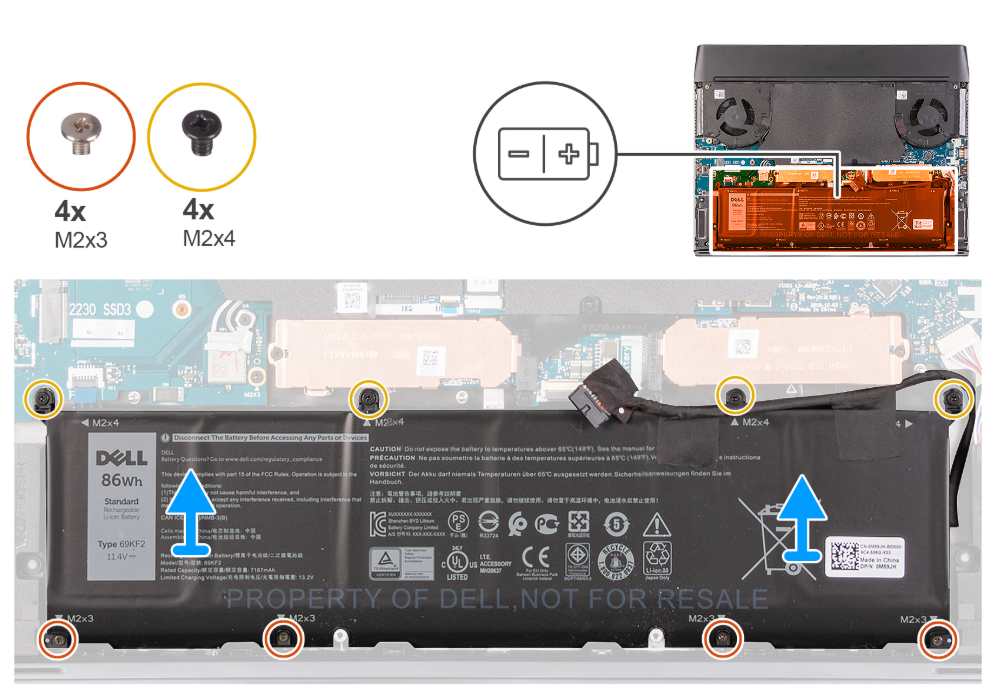
- Confirm the battery cable is disconnected from the system board.
- Remove the four M2×4 screws securing the battery.
- Remove the four M2×3 screws securing the battery.
- Lift the battery straight up and out of the palm-rest assembly—do not flex the pack.
- Place the new 69KF2 86 WHr battery in position.
- Install the four M2×3 screws, then the four M2×4 screws. Tighten until snug.
- Route and connect the battery cable to the system board; secure the cable tape.
8) Reassembly, RTC Reset & Battery Calibration
- Align the base cover and press around the edges to engage all clips.
- Tighten the six captive screws, then install the two M2.5×5 screws.
- Reconnect the AC adapter and power on. The system may turn on and off up to three times for RTC reset.
- If you see Invalid Configuration, press the on-screen prompt to enter BIOS, set the correct date & time, then Save & Exit.
- In Windows, confirm the battery is detected and charging.
Calibrate for best battery readings
Charge to 100%, keep charging for 30 minutes, then use on battery down to ~10–15% without heavy gaming. Recharge to 100%. This helps the controller report capacity more accurately.
Recycle your old battery
Do not trash lithium-ion packs. Use local e-waste or retail battery recycling drop-offs.
9) FAQ & Quick Answers
Will this 86 WHr battery fit my exact laptop?
Yes, for Alienware m15 R4 platforms P87F / P87F003 using Dell 69KF2.
My battery is swollen. Can I still use the laptop?
No. Power down, disconnect AC, and replace the battery as soon as possible.
Windows says “Plugged in, not charging.” Is my battery bad?
Sometimes it’s a charge limit setting. Disable limits in Dell Power Manager and retest. If unchanged and health reads poor, replace the battery.
How long does the first full charge take?
Approximately 3 hours with the laptop powered off.