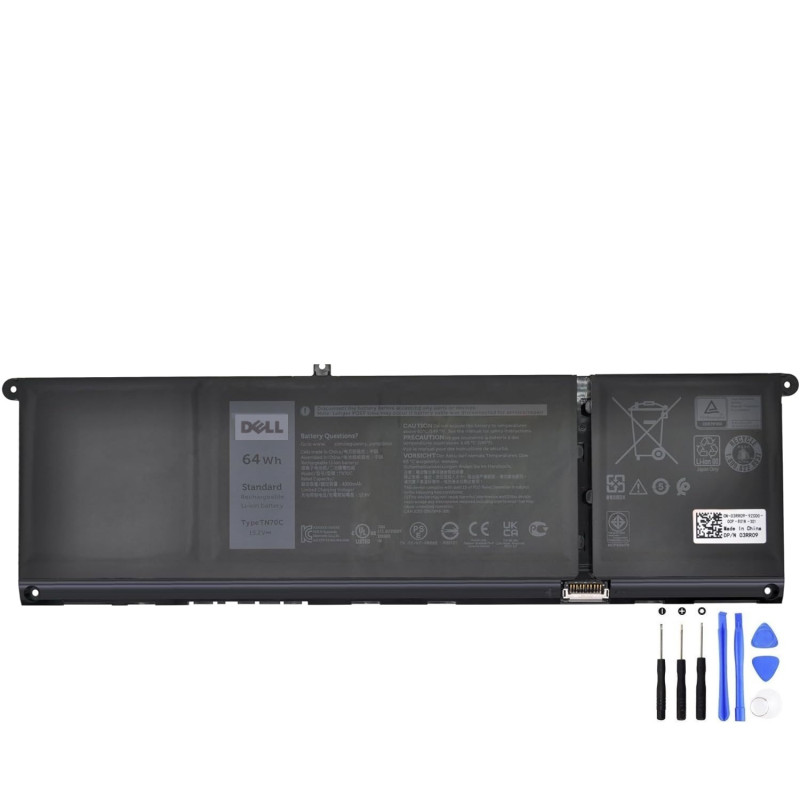
Dell Inspiron 16 5630 Battery Guide — Diagnose & Replace (TN70C 64Wh / V6W33 54Wh)
If your Inspiron 16 5630 (Model P125F / P125F001) no longer holds charge, drains fast, or shuts down at random, this guide helps you confirm the fault and, if needed, replace the battery safely — with photos and step-by-step instructions for UK customers.
Summary — Quick Navigation
1) Common Battery Problems & What They Mean
2) Inspiron 16 5630 Battery Options & Specs
3) Preparation & Safety
4) Remove the Base Cover
5) Remove & Replace the Battery
6) Post-Replacement Steps & Calibration
7) FAQs
1) Common Laptop Battery Problems — How to Tell It’s Time
Power & Runtime Symptoms
- Rapid drop from 60% → 20% → 0%: Sudden percentage cliffs indicate worn cells and inaccurate fuel-gauge readings.
- Runtime cut to under 1 hour on light work (web, docs): Typical of a pack with high cycle count or degraded capacity.
- Random shutdowns when unplugged: Voltage sag under load; common in aged or imbalanced cells.
- Battery stuck at a certain % and won’t charge further: Protection logic limiting charge due to cell health.
Charging & Safety Symptoms
- “Plugged in, not charging” or charge LED blinking patterns: Often a failing pack or connector strain.
- Overheating while charging or a sweet/chemical smell: Potential internal fault — stop using and replace.
- Physical swelling (trackpad lift, base wobble): Gas build-up inside cells; do not continue using.
- Inconsistent charge time (10%→80% too quick/slow): Cell resistance changes; capacity no longer reliable.
2) Inspiron 16 5630 Battery Options & Specifications
Which one should I buy? For maximum runtime, choose TN70C 64Wh. If you prefer standard capacity or matching some factory configurations, choose V6W33 54Wh. Both share the same footprint and voltage for the Inspiron 16 5630 (P125F / P125F001).
| Description | Option One — 54Wh (V6W33) | Option Two — 64Wh (TN70C) |
|---|---|---|
| Battery type | 4-cell polymer (54 Wh), Li-ion battery | 4-cell polymer (64 Wh), Li-ion battery |
| Battery voltage | 15 V | 15 V |
| Max weight | 0.24 kg (0.53 lb) | 0.24 kg (0.53 lb) |
| Dimensions (H × W × D) | 271.90 × 82 × 5.75 mm | 271.90 × 82 × 5.75 mm |
| Operating temperature | 0°C to 50°C (32°F to 122°F) | 0°C to 50°C (32°F to 122°F) |
| Storage temperature | −20°C to 60°C (−4°F to 140°F) | −20°C to 60°C (−4°F to 140°F) |
| Charging time (device off) | ~2 hr (Express) / ~3 hr (Standard) | ~2 hr (Express) / ~3 hr (Standard) |
| Typical use notes | Good everyday runtime | Longer runtime between charges |
Target model: Dell Inspiron 16 5630 — P125F / P125F001.
3) Preparation & Safety
- Shut down Windows completely. Disconnect the AC adapter and all peripherals.
- Move to a clean, static-free surface. Wear an anti-static wrist strap if available.
- Tools: Phillips #0 screwdriver, plastic scribe or guitar pick, small tray for screws.
- If the battery is swollen, do not press on the trackpad or base. Avoid puncture and handle gently.
4) Remove the Base Cover
Step A — Remove screws
Remove the seven M2×4 screws securing the base cover to the palm-rest/keyboard assembly. Then loosen the two captive screws (they remain attached to the cover).

Step B — Release the clips
Using a plastic scribe, start at the top-left corner and work along the edges to release the cover clips.

Step C — Lift off the cover
Lift and slide the cover away from the palm-rest. Ensure there is no SD card in the slot before removal.

5) Remove & Replace the Battery
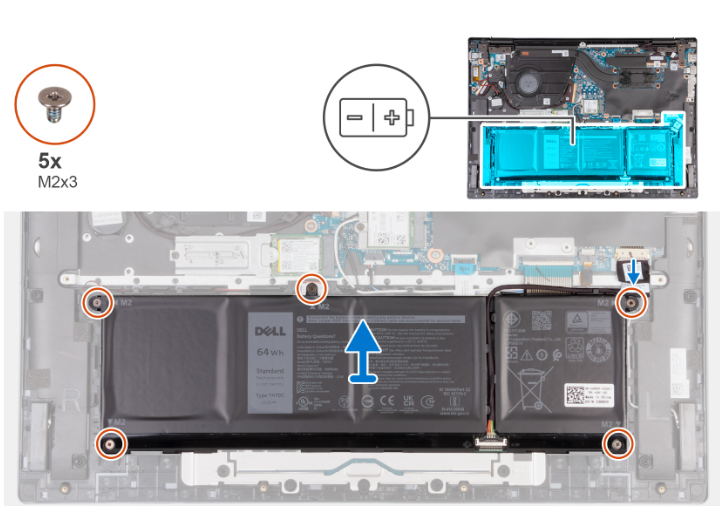
Step D — Disconnect and free the cable
Confirm the battery cable is fully disconnected, then disengage it from the routing tabs on the system board.
Step E — Remove the battery
Remove the five M2×4 screws that secure the battery to the palm-rest/keyboard assembly. Lift the battery straight up and out of the chassis.
Step F — Install the new battery
- Place the new pack (TN70C 64Wh or V6W33 54Wh) into position without pinching cables.
- Re-install the five M2×4 screws. Do not overtighten.
- Route and connect the battery cable; press evenly on the connector.
- Reattach any cable tape that was previously applied.
Step G — Refit the base cover
- Align the cover and press around the perimeter to engage all clips.
- Tighten the two captive screws, then install the seven M2×4 screws.
6) Post-Replacement Steps & Calibration
- Connect AC and power on. If prompted about a battery change, acknowledge and continue.
- In Windows, check Device Manager → Batteries for any warnings.
- Calibrate for accurate percentage readings:
- Charge to 100% while the laptop is off; leave it on charge for 30–60 minutes after it reaches 100%.
- Use on battery down to ~10–15% under normal load, then recharge uninterrupted to 100%.
- Optional: Install or update Dell power management utilities to fine-tune charging behaviour.
Express (~2 hr) and Standard (~3 hr) charging times apply when the computer is off. Actual runtime varies with workload and settings.
7) FAQs
Will the 64Wh TN70C fit if my laptop originally came with 54Wh?
Yes. Both options share the same footprint and voltage for the Inspiron 16 5630, so you can upgrade to the 64Wh pack for longer runtime.
What if my battery is swollen?
Stop using the device, avoid pressure on the chassis, and replace the battery as soon as possible. Do not puncture or compress a swollen pack.
My laptop says “plugged in, not charging.” Is it always the battery?
Not always — but it’s a common cause. Try another AC adapter, inspect the DC jack, and run a battery report. If several symptoms apply from the list above, replacing the battery is recommended.
Alternate Battery Option (54Wh)
