Not sure if your battery is the culprit? Use the checklist below to confirm. If you need a replacement, this battery fits the target model:
Buy Dell V6W33 54Wh Battery
Should I Replace My Battery? (Customer Symptoms & Verification)
Common, Deep-Dive Symptoms Customers Notice
These are the real-world signs customers report before deciding to replace the battery. If two or more apply to you, you’re very likely due for a replacement.
| What You Experience | What It Often Means | Quick Checks |
|---|---|---|
| Laptop only works when plugged in | Battery capacity is severely degraded or not detected | Reboot, check Windows/Linux battery status; inspect battery connection |
| Battery drains much faster than before (e.g., <30–60 min runtime) | Wear level high, chemistry aged | Close heavy apps, reduce brightness; if still short, battery is worn |
| Stuck charging below 80–90% or random % plateau | OEM health limit feature or cell imbalance | Check OEM power settings; if still stuck, likely cell wear |
| “Battery not detected” / “Plugged in, not charging” | Loose cable, failed pack, or controller fault | Power-off, reseat battery cable; try different adapter |
| Sudden shutdown at 10–40% remaining | Inaccurate calibration or failing cells | Full charge → discharge to auto-off → full charge; if persists, replace |
| Battery percentage jumps up/down quickly | High internal resistance, aging cells | Observe under light use; big swings indicate wear |
| Unusual heat while charging or on battery | Elevated resistance or damaged pack | Stop heavy charging; ensure clear vents; persistent heat warrants replacement |
| Battery looks swollen/bulging or lifts the base/trackpad | Gas buildup from cell failure | Stop using immediately; replace and recycle safely |
| Charging is very slow or not at all | AC adapter, port, or pack issue | Test with known-good adapter; check port debris; reseat battery cable |
| Performance drops or fan races on battery | System limits performance due to weak pack | Compare plugged vs. unplugged performance; if large gap, battery likely weak |
Battery Problem Diagnosis Checklist 0
Select what you’re experiencing. If 2 or more are selected, you’ll see a red alert to replace the battery.
If 0–1 items match your situation, try software checks first (close background apps, update ChromeOS/BIOS, recalibrate). If 2+ match, a replacement is the fastest, most reliable fix.
1) Preparation & Safety
Tools & Materials
| Item | Notes |
|---|---|
| Phillips screwdriver | For captive and battery screws (M2x3) |
| Plastic pry tool / scribe | To release the base cover clips safely |
| ESD precautions | Power off, unplug AC, press power button 5s to discharge |
| Replacement battery (V6W33, 54Wh) | Fits Dell Latitude 3445 Chromebook P183G / P183G001 — Product page |
Power Down & Prepare
- Save work and shut down ChromeOS.
- Unplug the charger and all accessories.
- Hold the power button for 5 seconds to drain residual “flea power”.
- Work on a clean, stable surface with good lighting.
2) Remove the Base Cover
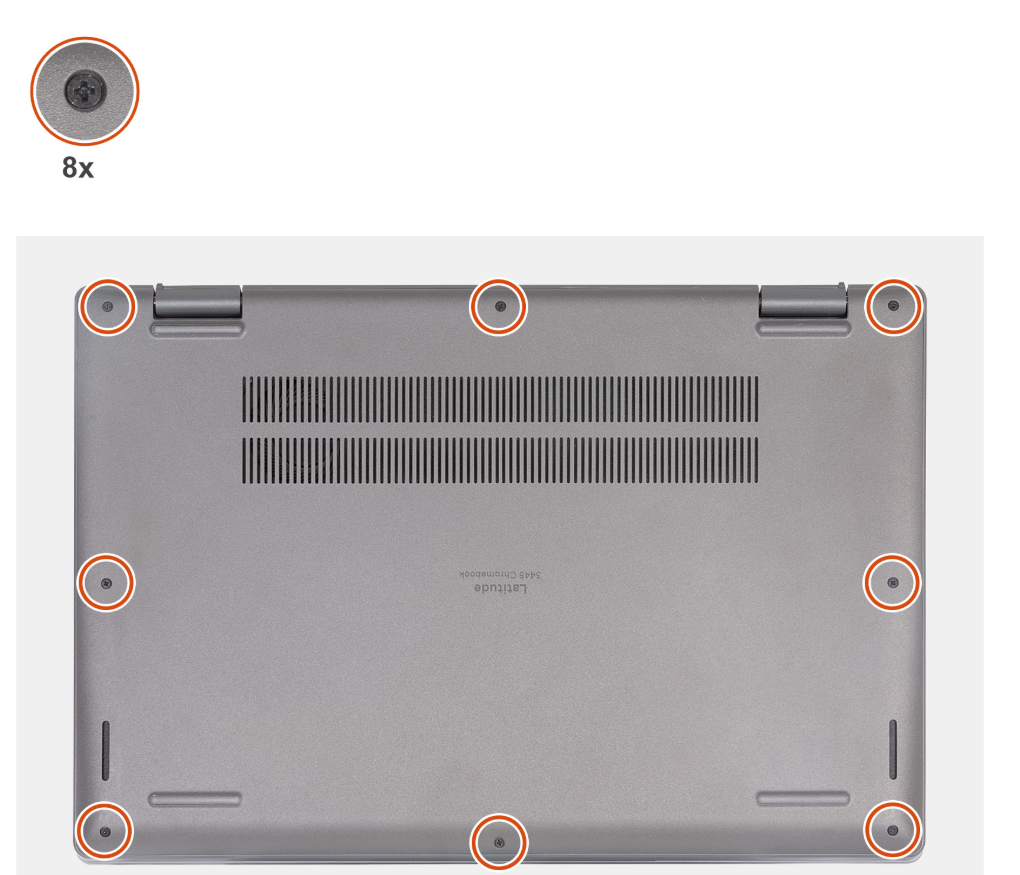
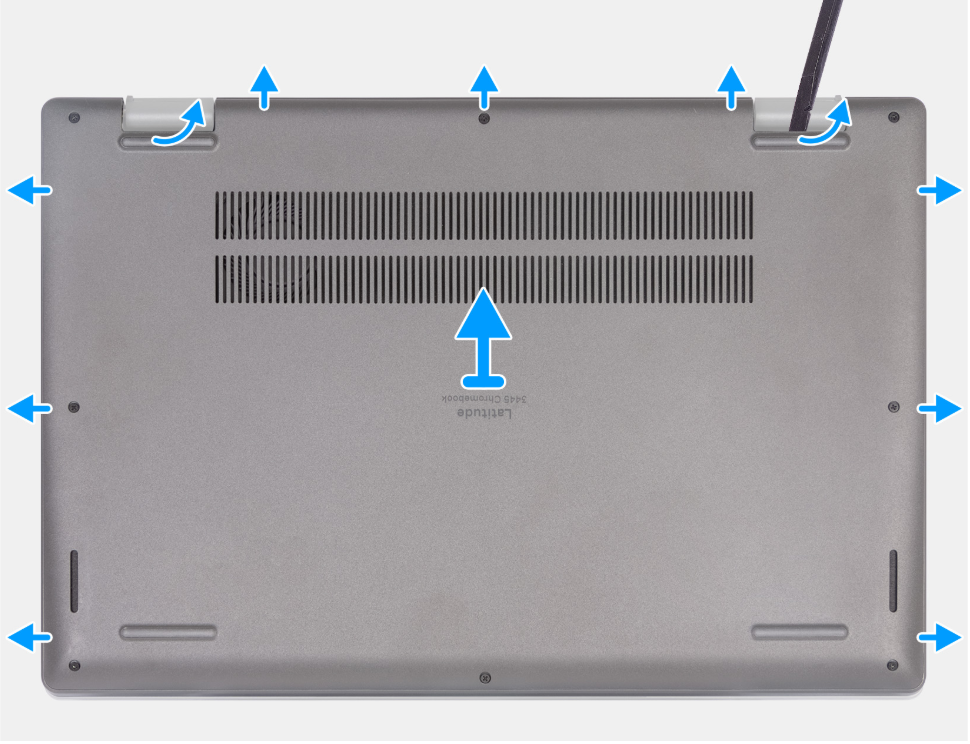
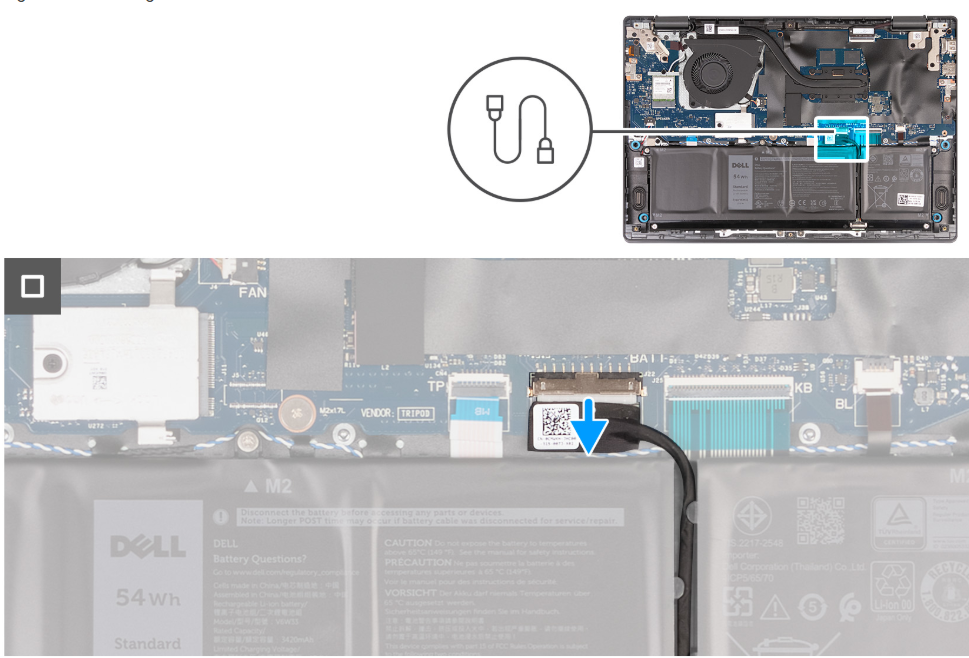
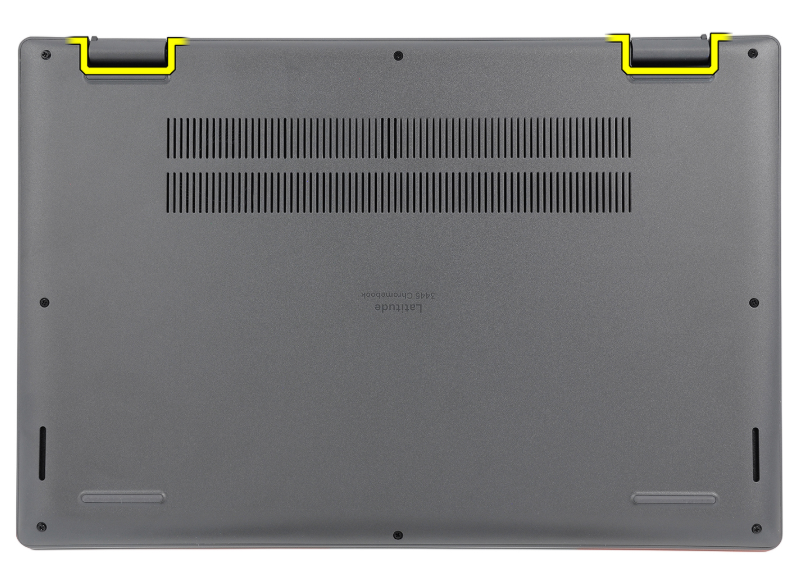
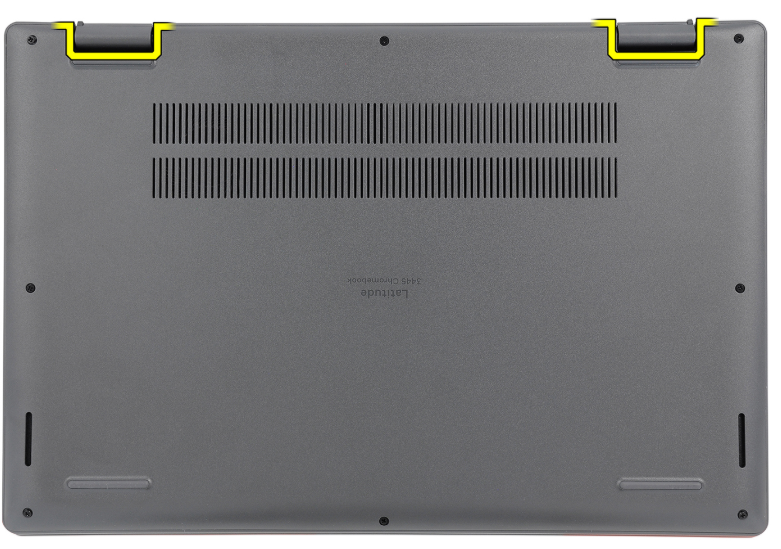
- Loosen the eight captive screws securing the base cover to the palm-rest and keyboard assembly.
- Using a plastic scribe, gently pry from the U-shaped indents at the top edge, then along both sides to release the clips.
- Continue around the perimeter until the cover is free; lift and remove it from the palm-rest and keyboard assembly.
3) Disconnect the Battery (Drain Residual Power)
- Disconnect the battery cable from the system board connector.
- Press and hold the power button for 5 seconds again to ground the system and drain any residual charge.
4) Remove the Old Battery
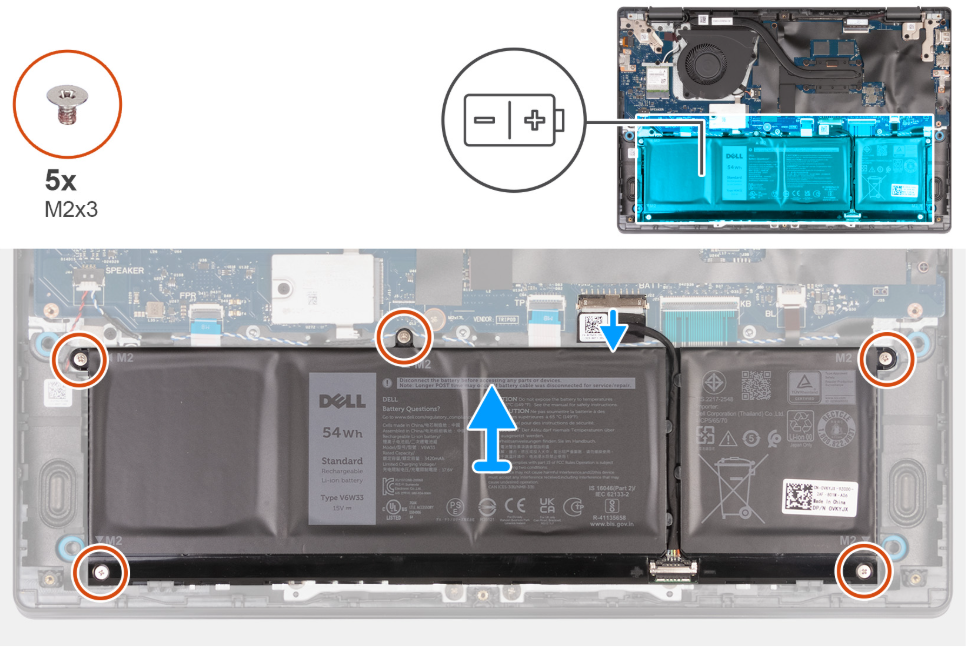
- If not already done, disconnect the battery cable from the system board.
- Remove the five screws (M2x3) that secure the battery to the palm-rest and keyboard assembly.
- Lift the battery straight up and out. Keep screws safe for reassembly.
5) Install the New Battery (V6W33, 54Wh)

Compatibility: Dell Latitude 3445 Chromebook (P183G / P183G001).
- Position the new battery, aligning the screw holes and connector.
- Reinstall the five M2x3 screws. Do not overtighten—snug and even is best.
- Reconnect the battery cable to the system board firmly and squarely.
6) Reassemble & Post-Install Testing
- Place the base cover back on, align edges and clips.
- Press around the perimeter to engage clips; tighten the eight captive screws.
- Power on the Chromebook and confirm it boots normally.
- Charge to 100% without interruption. Then use on battery to ~20–30%, and recharge to help calibration.
| Check | Expected Result |
|---|---|
| Battery detected | System shows battery present and charging |
| Charging behavior | Steady increase in % while plugged in |
| Runtime | Significantly improved vs. old battery |
| Thermals | No unusual heat or swelling |
All good? You’re done! If detection/charging fails, recheck the battery connector seating and adapter. Persistent issues may indicate a board-side power fault.
Battery FAQs (Quick Answers)
How long does a laptop battery usually last?
Typically 2–4 years or about 300–500 charge cycles, depending on usage, temperature, and charging habits.
Is it safe to keep my laptop plugged in all the time?
It’s safe, but staying at 100% continuously may shorten lifespan over years. Periodic battery use helps keep cells healthy.
What should I do with the old battery?
Recycle at an authorized e-waste center. Do not trash or incinerate. If swollen, transport with care in a ventilated container.